
Cet article explique chaque étape pour connecter la Soa Suite 11G PS1 avec un serveur d'email gratuit déjà étudié (Argosoft).
Avant tout il faut configurer notre serveur d'email:
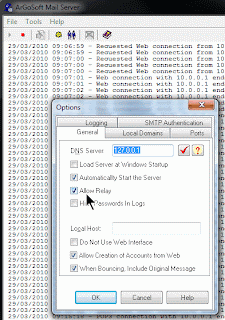

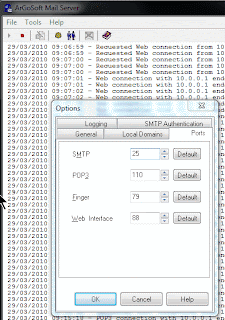
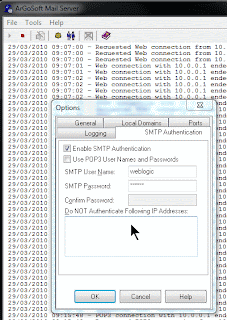
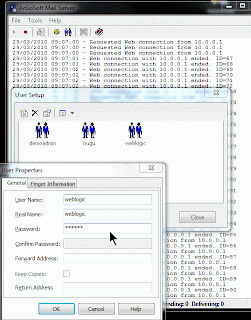
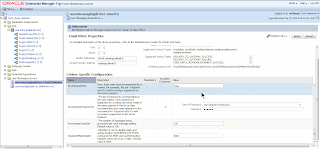
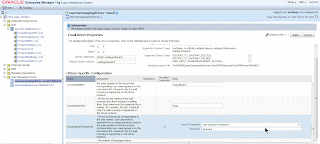
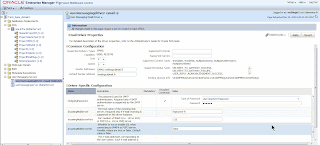
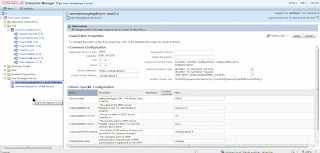
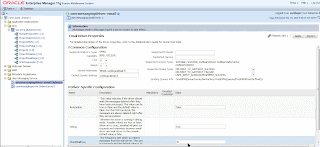

Ne pas oublier également de configurer la notification du workflow:
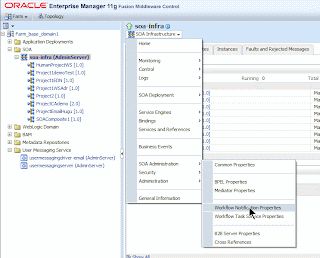
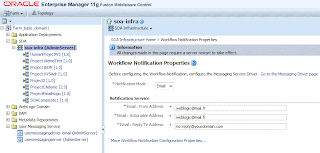
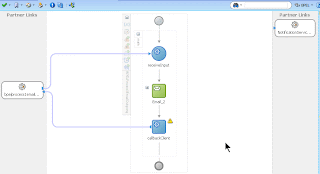

Suite à l'execution du composite vous devez avoir dans vos log ce type de trace:
DEBUG: setDebug: JavaMail version 1.4.1
DEBUG: getProvider() returning javax.mail.Provider[TRANSPORT,smtp,com.sun.mail.s
mtp.SMTPTransport,Sun Microsystems, Inc]
DEBUG SMTP: useEhlo true, useAuth true
DEBUG SMTP: useEhlo true, useAuth true
DEBUG SMTP: trying to connect to host "hsimonne-fr", port 25, isSSL false
220 ArGoSoft Mail Server Freeware, Version 1.8 (1.8.8.8)
DEBUG SMTP: connected to host "hsimonne-fr", port: 25
EHLO hsimonne-fr
250-Welcome [10.0.0.1], pleased to meet you
250-AUTH=LOGIN
250-AUTH LOGIN
250-SIZE 5242880
250 HELP
DEBUG SMTP: Found extension "AUTH=LOGIN", arg ""
DEBUG SMTP: Found extension "AUTH", arg "LOGIN"
DEBUG SMTP: Found extension "SIZE", arg "5242880"
DEBUG SMTP: Found extension "HELP", arg ""
DEBUG SMTP: Attempt to authenticate
AUTH LOGIN
334 VXNlcm5hbWU6
d2VibG9naWM=
334 UGFzc3dvcmQ6
b3JhMTIz
235 Authentication successful
DEBUG SMTP: use8bit false
MAIL FROM:
250 Sender "weblogic@mail.fr" OK...
RCPT TO:
250 Recipient "demoadmin@mail.fr" OK...
DEBUG SMTP: Verified Addresses
DEBUG SMTP: demoadmin@mail.fr
DATA
354 Enter mail, end with "." on a line by itself
Return-Path: <>
From: weblogic@mail.fr
Reply-To: no.reply@yourdomain.com
To: demoadmin@mail.fr
Message-ID: <385813920.2.1269849263251.javamail.hsimonne@hsimonne-fr>
Subject: test From Bpel - test From Bpel - 1900042010-03-29T09:54:23+02:00
MIME-Version: 1.0
Content-Type: text/html; charset=UTF-8
Content-Transfer-Encoding: 7bit
X-Priority: 3
X-EmailDriver-Message-ID: hsimonne-fr:25@385772960-0
Email Bpel
Bonjour demoadmin@mail.fr
.
250 Message accepted for delivery.
QUIT
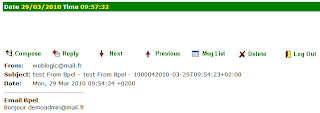
Il reste plus qu'à vérifier votre résultat dans l'interface web de argosoft:
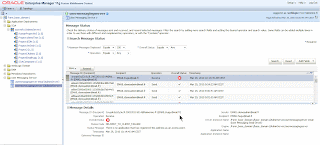
Vous pouvez également valider les envois et réceptions d'email sur la console EM:
En cas de problème de connexion, validez cela:
Avant tout il faut configurer notre serveur d'email:


puis vient la configuration de Soa Suite via la console d'administration Enterprise Manager:


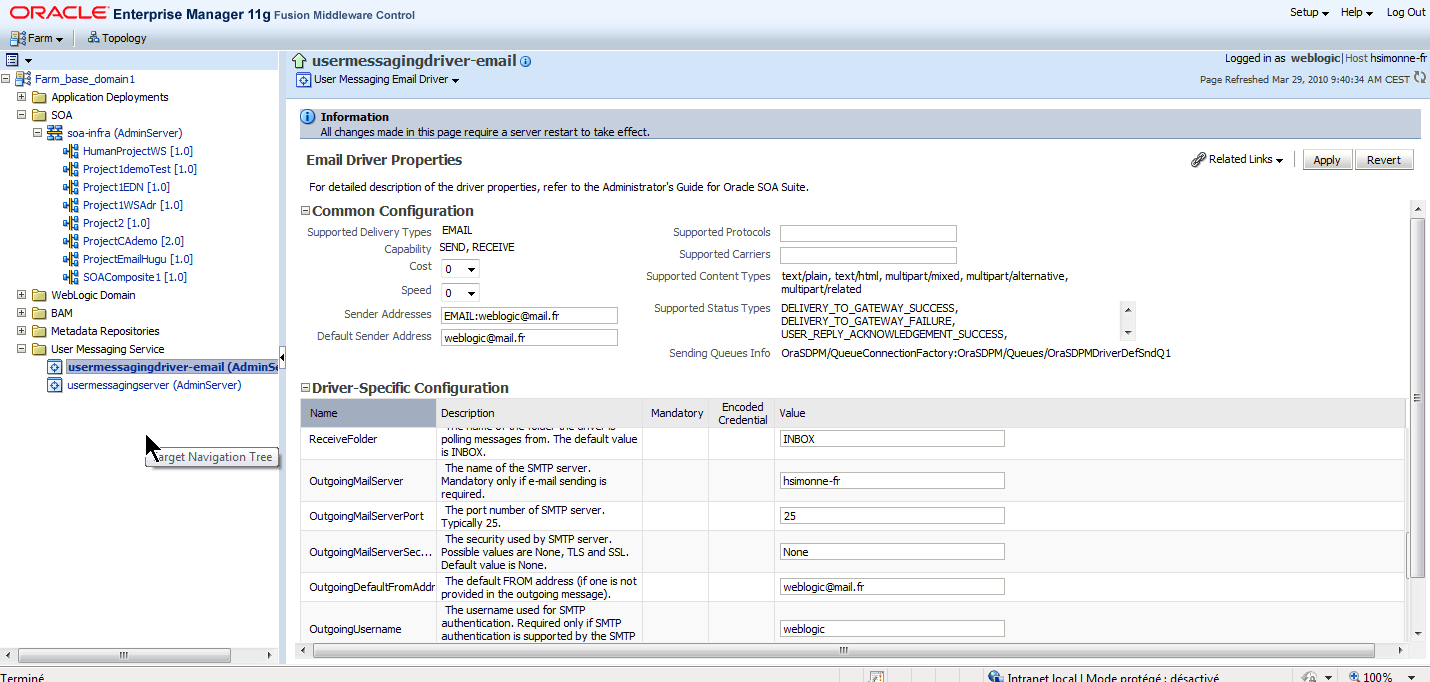


Ne pas oublier également de configurer la notification du workflow:

Ensuite soit vous relancez votre serveur SOA soit vous stopper et redémarrer: usermessagingdriver-email
Ensuite il suffit de déployer un composite comprenant par exemple un processus BPEL:
Ensuite il suffit de déployer un composite comprenant par exemple un processus BPEL:


Suite à l'execution du composite vous devez avoir dans vos log ce type de trace:
DEBUG: setDebug: JavaMail version 1.4.1
DEBUG: getProvider() returning javax.mail.Provider[TRANSPORT,smtp,com.sun.mail.s
mtp.SMTPTransport,Sun Microsystems, Inc]
DEBUG SMTP: useEhlo true, useAuth true
DEBUG SMTP: useEhlo true, useAuth true
DEBUG SMTP: trying to connect to host "hsimonne-fr", port 25, isSSL false
220 ArGoSoft Mail Server Freeware, Version 1.8 (1.8.8.8)
DEBUG SMTP: connected to host "hsimonne-fr", port: 25
EHLO hsimonne-fr
250-Welcome [10.0.0.1], pleased to meet you
250-AUTH=LOGIN
250-AUTH LOGIN
250-SIZE 5242880
250 HELP
DEBUG SMTP: Found extension "AUTH=LOGIN", arg ""
DEBUG SMTP: Found extension "AUTH", arg "LOGIN"
DEBUG SMTP: Found extension "SIZE", arg "5242880"
DEBUG SMTP: Found extension "HELP", arg ""
DEBUG SMTP: Attempt to authenticate
AUTH LOGIN
334 VXNlcm5hbWU6
d2VibG9naWM=
334 UGFzc3dvcmQ6
b3JhMTIz
235 Authentication successful
DEBUG SMTP: use8bit false
MAIL FROM:
250 Sender "weblogic@mail.fr" OK...
RCPT TO:
250 Recipient "demoadmin@mail.fr" OK...
DEBUG SMTP: Verified Addresses
DEBUG SMTP: demoadmin@mail.fr
DATA
354 Enter mail, end with "." on a line by itself
Return-Path: <>
From: weblogic@mail.fr
Reply-To: no.reply@yourdomain.com
To: demoadmin@mail.fr
Message-ID: <385813920.2.1269849263251.javamail.hsimonne@hsimonne-fr>
Subject: test From Bpel - test From Bpel - 1900042010-03-29T09:54:23+02:00
MIME-Version: 1.0
Content-Type: text/html; charset=UTF-8
Content-Transfer-Encoding: 7bit
X-Priority: 3
X-EmailDriver-Message-ID: hsimonne-fr:25@385772960-0
Email Bpel
Bonjour demoadmin@mail.fr
.
250 Message accepted for delivery.
QUIT
Il reste plus qu'à vérifier votre résultat dans l'interface web de argosoft:

Vous pouvez également valider les envois et réceptions d'email sur la console EM:

Encore plus ?
Configuration pour Google email (en anglais): ICI
En cas de problème de connexion, validez cela:
Pluggable Notification Service Registration
Once the implementation is available, you register it in the System MBean Browser.
To register the pluggable notification service:
1. Log in to Oracle Enterprise Manager Fusion Middleware Control Console.
2. In the navigator, expand the SOA folder.
3. Right-click soa-infra, and select Administration > System Mbean Browser.
The System MBean Browser displays on the right side of the page.
4. Expand Application Defined MBeans > oracle.as.soainfra.config > Server:
server_name > HWFMailerConfig > human-workflow.
5. Click the CustomNSDriverPropertyNames property on the right side of the page.
6. Record the values displayed by CustomNSDriverPropertyNames for the All,
Voice, Email, Fax, Pager, SMS, and IM properties.
7. Click Return.
8. Click the Operations tab.
9. Click setCustomNSDriverPropertyValue


